Imagine slipping on your AirPod Pros, expecting the sweet escape of your favorite tunes, only to be met with unexpected noise issues. From hissing static to uninvited hums, audio disturbances can turn your listening experience from blissful to bothersome in an instant. You’ve invested in one of the best personal audio devices on the market, and you deserve to enjoy every note and podcast episode as they were meant to be heard, crystal clear and without interruption.
Your AirPod Pros hold the key to an acoustic haven, and when noise problems arise, it’s not just a minor inconvenience; it’s a rift in your daily soundtrack. This article serves as a trusty guide to fix those pesky noise hiccups. Together, we’ll explore the most effective troubleshooting steps that ensure your AirPods Pro perform optimally, maintaining the harmony of your auditory world, so you can get back to enjoying every beat and word in the way the creators intended.
Fixing AirPod Pro Noise Problems
Sometimes you might face issues with your AirPods Pro where you experience unwanted noise or sound quality problems. It can be a bit of a hassle, but don’t worry—it often takes just a few steps to solve. Here’s a friendly guide to help you iron out those audio kinks with your AirPods Pro.
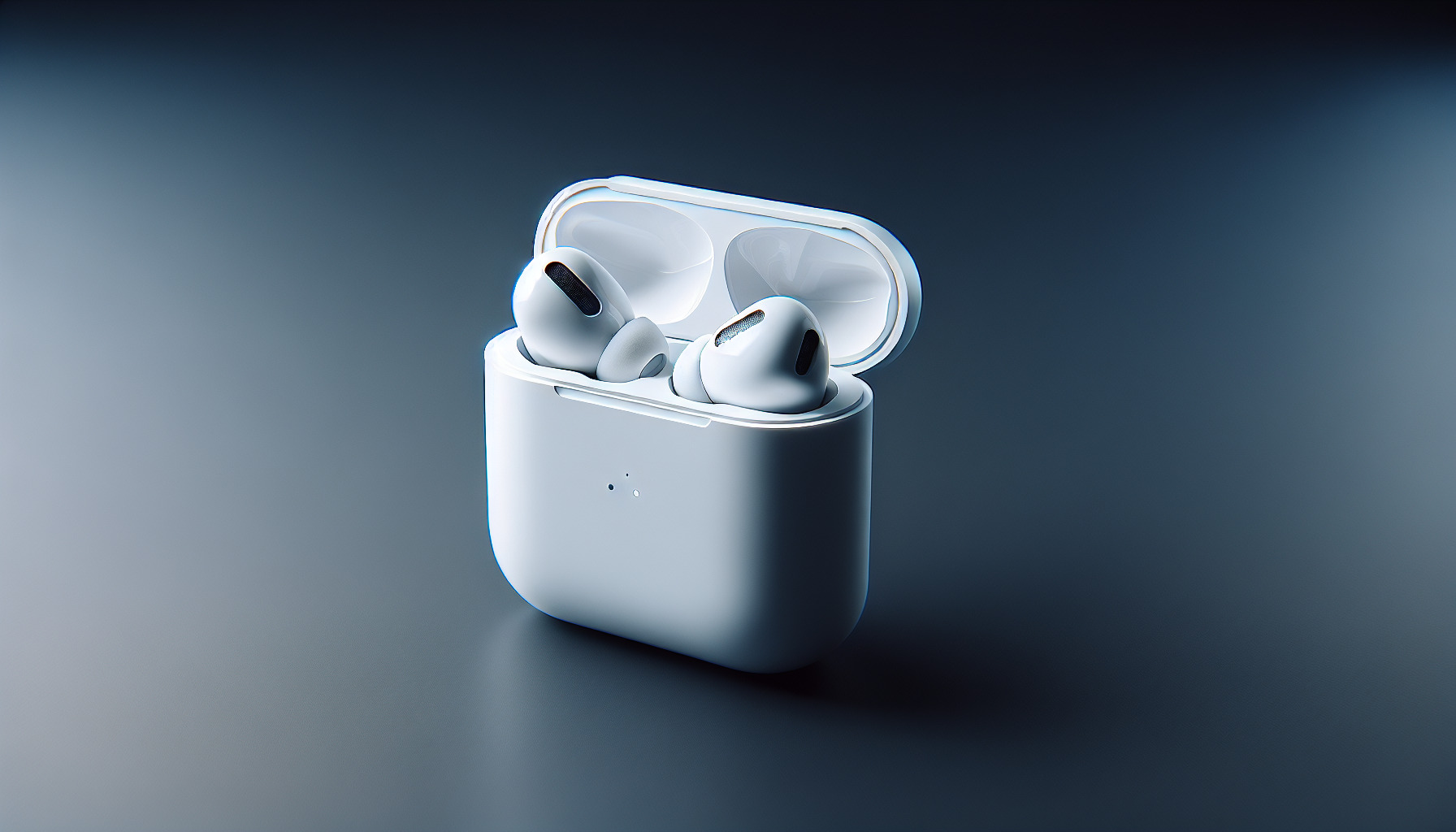
1. Check for Firmware Updates
Your first step should be to make sure your AirPods Pro are up to date. Firmware updates can contain important improvements and bug fixes that could resolve noise issues. Here’s what you can do:
- Put your AirPods Pro in their charging case, and connect them to an iOS device.
- Ensure the iOS device has an internet connection and is up to date.
- The firmware will update automatically, but you can check the current firmware version by going to the Settings app, tapping on Bluetooth, and clicking the “i” next to your AirPods Pro.
2. Reset the AirPods Pro
If updating didn’t help, a reset might do the trick. Resetting your AirPods Pro can help clear out any temporary glitches affecting your audio:
- Place your AirPods in their case and close the lid. Wait about 30 seconds.
- Open the lid of your AirPods’ case, but leave the AirPods inside.
- Go to the Bluetooth settings on your device and forget the AirPods Pro.
- With the lid open, press and hold the setup button on the back of the case for about 15 seconds, until the status light flashes amber, then white.
- Reconnect your AirPods by holding them close to your device and following the on-screen instructions.
3. Clean the AirPods Pro
Buildup of earwax or debris can impact sound quality. Let’s ensure your AirPods Pro are spotless:
- Use a soft, dry, lint-free cloth to clean the body of the AirPods.
- If necessary, slightly dampen the cloth with isopropyl alcohol and wipe again.
- Use a soft-bristled brush to gently clear out any grime from the speaker meshes.
- Do not run your AirPods Pro under water or use sharp objects to clean them.
4. Adjust the Ear Tips
Getting the right fit is crucial to experiencing the best sound quality:
- Ensure you’re using the correct size ear tips for your ears. They come in small, medium, and large sizes.
- Press the ear tips firmly onto each AirPod until you hear a click to make sure they’re fully connected.
- To test the ear tip fit, place both AirPods in your ears and use the “Ear Tip Fit Test” on your connected iOS device, which can guide you to the best fit.
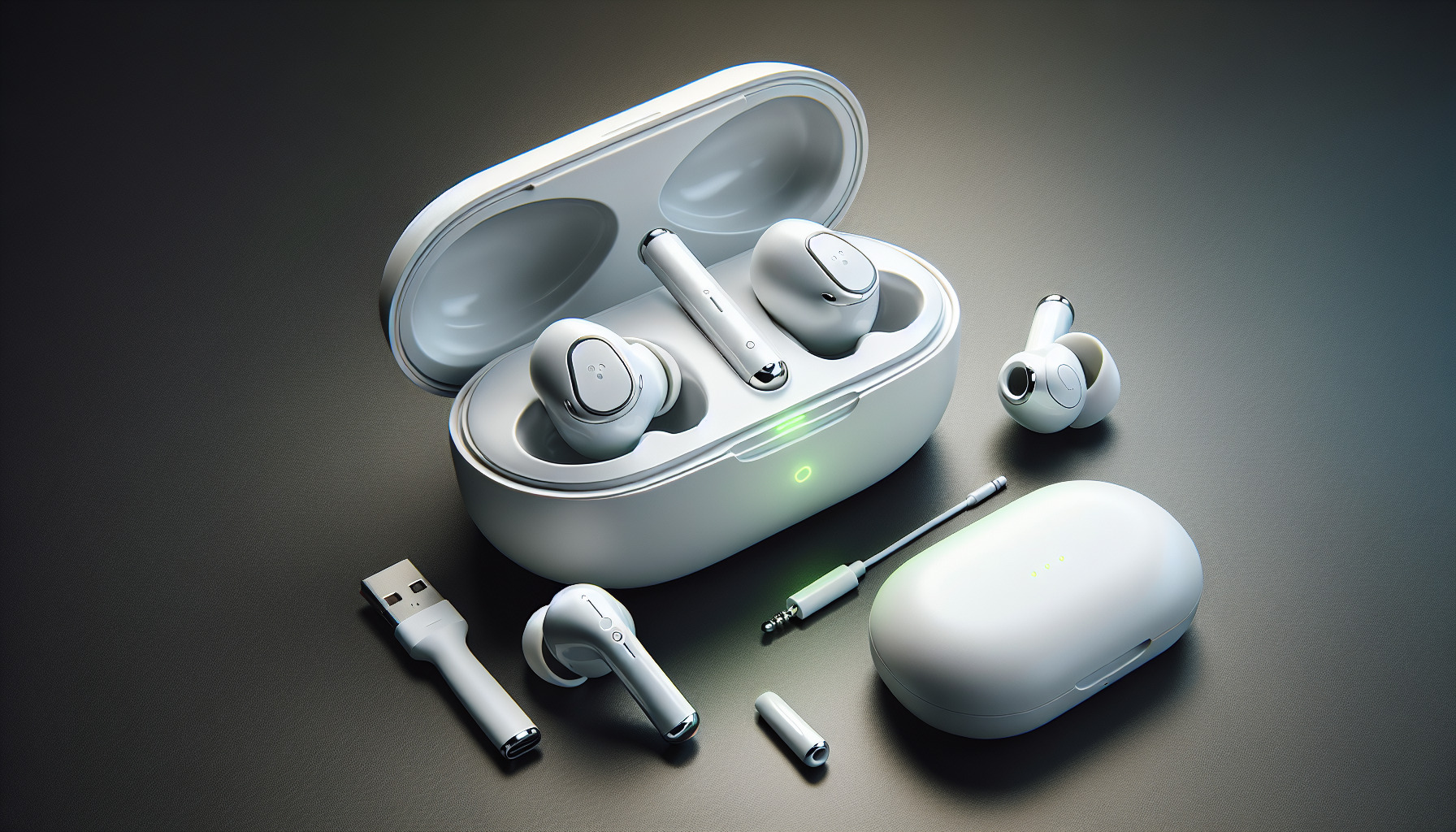
5. Disable Noise Cancellation
Although impressive, the Active Noise Cancellation feature could sometimes be the culprit:
- Open the Control Center on your iOS device.
- Press and hold the volume slider that controls the AirPods Pro.
- Tap the Noise Control icon at the bottom left and select “Off” to disable Noise Cancellation.
Try Listening with Noise Cancellation Disabled
Listen to your audio content with Noise Cancellation turned off to check if the noise issues persist. If the problems disappear, there might be an issue specifically with the noise-cancelling feature.
6. Enable Transparency Mode
Transparency mode can offer a different listening experience by letting in ambient noise:
- Using the same steps mentioned to disable Noise Cancellation, select “Transparency” instead of “Off.”
- Experiment with this mode to see if it alleviates your issue.
Assessing the Difference
Notice how the sound changes when switching between your AirPods Pro’s modes. This can indicate whether your issues are related to software settings or possibly the hardware.
7. Try Different Listening Modes
Your AirPods Pro offers various modes to tailor your listening experience:
- Noise Cancellation: For immersive sound by blocking out external noise.
- Off: For a standard in-ear headphone experience.
- Transparency: For letting surrounding sounds in for situational awareness.
Experiment with these modes as audio discrepancies might only present issues in one specific mode.
8. Reconnect Bluetooth Connection
Sometimes the Bluetooth connection can be the root of your problems:
- Go to your device’s Bluetooth settings and disconnect your AirPods Pro.
- Turn off Bluetooth on your device, then turn it back on.
- Reconnect your AirPods Pro by selecting them in the Bluetooth device list.
9. Reset Network Settings (for connectivity issues)
If you’re experiencing noise problems alongside connectivity issues, a network settings reset may be necessary:
- Go to the Settings app on your iOS device.
- Select General, then scroll down and tap Reset.
- Choose Reset Network Settings and confirm. You will need to re-enter Wi-Fi passwords after this reset.
10. Contact Apple Support
If all else fails, it’s time to get in touch with the experts:
- Visit the Apple Support website or give them a call.
- Explain the problem in detail, including the steps you’ve already tried.
- They might offer additional troubleshooting steps or suggest a repair or replacement if needed.
Booking an Appointment
Sometimes, a face-to-face appointment at an Apple Store’s Genius Bar can be more beneficial. Staff there will be able to directly assess your AirPods Pro.
| Step | Action | Expected Outcome |
|---|---|---|
| 1 | Check for Firmware Updates | Ensure your AirPods are running the latest software |
| 2 | Reset the AirPods Pro | Clear any minor software issues |
| 3 | Clean the AirPods Pro | Remove any debris that might affect sound quality |
| 4 | Adjust the Ear Tips | Secure the best fit for optimal audio experience |
| 5 | Disable Noise Cancellation | Test if ANC is causing the noise issue |
| 6 | Enable Transparency Mode | Determine how ambient noise impacts your listening |
| 7 | Try Different Listening Modes | Compare modes to identify mode-specific problems |
| 8 | Reconnect Bluetooth Connection | Establish a fresh connection with your device |
| 9 | Reset Network Settings | Address any underlying connectivity issues |
| 10 | Contact Apple Support | Get professional advice or service |
In your troubleshooting journey, patience and attention to detail are your allies. Use this guide as a reference and hopefully, the smooth and clear audio enjoyment from your AirPods Pro will be restored. Remember to keep your AirPods Pro clean, update regularly, and experiment with the settings to find what works best for you.