Do you have an iPhone? Whether you’re a long-time user or new to the Apple family, there are countless ways to make the most out of your device. From hidden features to time-saving tricks, there are plenty of iPhone hacks that can enhance your overall experience. In this article, we’ll delve into some of the best iPhone hacks, covering everything from organizing your apps to boosting your productivity. So, if you’re ready to take your iPhone usage to the next level, keep reading to discover some valuable tips and tricks.
Let’s face it, our iPhones have become an essential part of our daily lives. We rely on them for communication, information, and even entertainment. But did you know that there are numerous hidden features and shortcuts that can make your iPhone even more powerful? In this article, we’ll explore some of these tricks, including how to customize your Control Center, improve battery life, and even use your iPhone as a remote control. So, whether you’re looking to save time, increase productivity, or simply have more fun with your device, we’ve got you covered. Stay tuned to find out how you can make the most out of your iPhone.
iPhone Hacks: Making the Most Out of Your Device
Getting to Know Your iPhone
Understanding the Basics
Welcome to the world of iPhone! As you embark on your journey with this amazing device, it’s important to understand the basics. The iPhone is known for its sleek design, powerful hardware, and user-friendly interface. To get started, you’ll need to set up your device by following the on-screen instructions. Once you’ve completed the setup process, you’ll have access to a wide range of features and functionalities.
Exploring the Home Screen
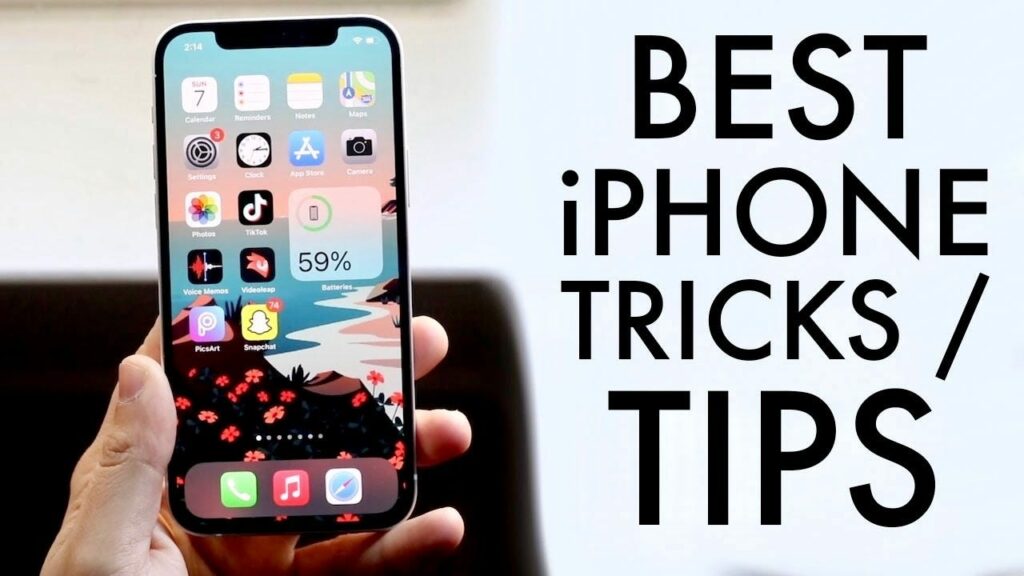
The home screen is the heart of your iPhone. It’s where you’ll find all your apps, widgets, and shortcuts. Take a moment to familiarize yourself with the layout and icons on your home screen. To add or remove apps, simply tap and hold on any app icon until they start jiggling. From there, you can drag and drop icons to rearrange them or use the X button to delete unwanted apps. You can also create folders to keep your apps organized by dragging one app on top of another.
Mastering the Control Center
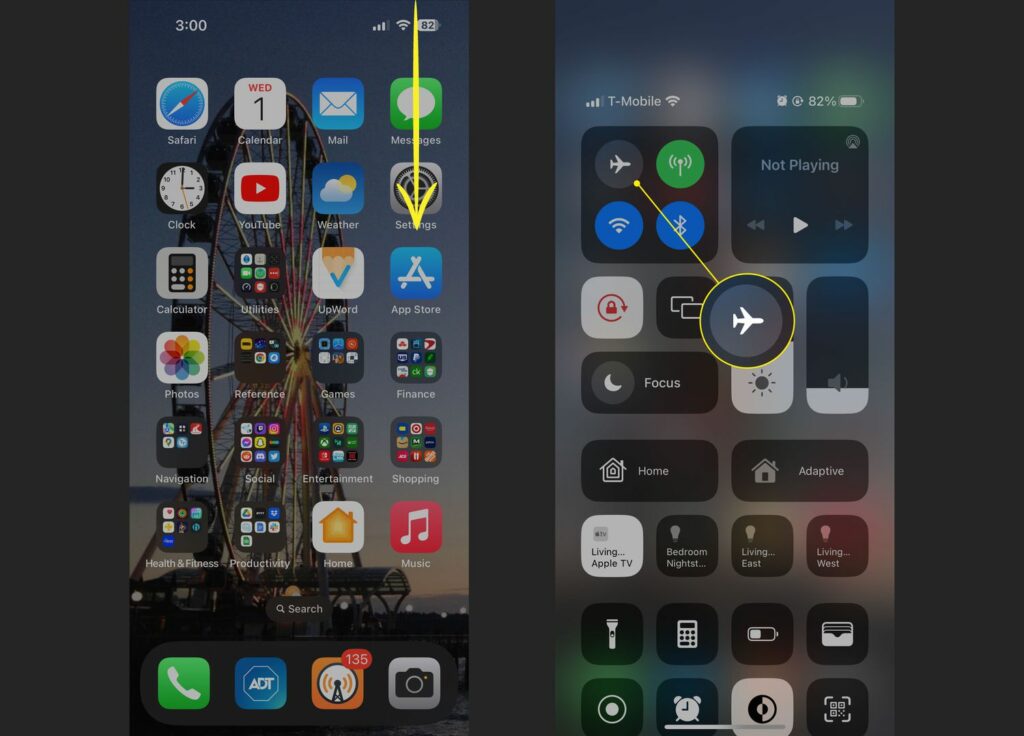
The Control Center is a handy feature that allows you to quickly access commonly used settings and functions. To access the Control Center, simply swipe down from the top-right corner of the screen. From here, you can adjust screen brightness, toggle Wi-Fi and Bluetooth on or off, control media playback, and much more. To customize the Control Center, go to Settings > Control Center > Customize Controls. You can add or remove shortcuts to tailor it to your needs.
Optimizing Your iPhone’s Performance
Managing Storage Space
One of the most common issues iPhone users face is running out of storage space. To manage your storage, go to Settings > General > iPhone Storage. Here, you’ll see a breakdown of how much storage is being used by different apps and data. To free up space, you can delete unused apps, offload rarely used apps, clear out old messages, and remove large files or downloads. You can also enable the “Optimize Storage” option for iCloud to automatically optimize storage by keeping only the most recent files on your device.
Updating iOS
Keeping your iPhone’s operating system up to date is crucial for performance and security. To check for updates, go to Settings > General > Software Update. If an update is available, simply tap on “Download and Install.” It’s recommended to connect to a Wi-Fi network and plug in your device to ensure a smooth and uninterrupted update process. Updating iOS will not only provide you with the latest features but also improve overall system stability.
Clearing App Cache
Over time, apps accumulate cached data, which can take up valuable storage space. To clear app cache, go to Settings > General > iPhone Storage. Scroll down to see a list of apps and the amount of storage they’re using. Tap on any app to see a detailed breakdown of its data. If an app has a large cache size, you can delete and reinstall the app to clear its cache. Keep in mind that clearing app cache may log you out of the app, so make sure to have your login credentials handy.
Customizing Your iPhone’s Settings
Adjusting Display and Brightness
Personalize your iPhone’s display settings to suit your preferences. Go to Settings > Display & Brightness. Here, you can adjust the brightness level using the slider or enable Auto-Brightness for the device to automatically adjust brightness based on ambient light. You can also enable Night Shift to reduce blue light emissions, especially helpful for nighttime reading. Experiment with these settings to find the perfect balance between visual comfort and battery efficiency.
Configuring Notifications
Never miss an important notification again by customizing your iPhone’s notification settings. Go to Settings > Notifications. Here, you can view a list of your installed apps and customize their individual notification settings. You can choose to allow or disable notifications, select notification styles such as banners or alerts, and even prioritize notifications from certain apps. Take some time to fine-tune these settings to ensure you’re only receiving the notifications that matter to you.
Personalizing Siri
Make your iPhone experience truly personal by setting up Siri, Apple’s voice-activated virtual assistant. Go to Settings > Siri & Search. From here, you can enable Siri and customize its settings. You can choose to activate Siri by pressing the side button or saying “Hey Siri.” You can also configure Siri’s language, voice gender, and voice feedback options. Siri can perform a wide range of tasks, from setting reminders and sending messages to answering questions and providing recommendations.
Maximizing Battery Life
Enabling Low Power Mode
If you find yourself running low on battery, enable Low Power Mode to conserve energy. When activated, Low Power Mode reduces or disables certain features and processes, such as mail fetch, background app refresh, and automatic downloads. To enable Low Power Mode, go to Settings > Battery > Low Power Mode. You can also add Low Power Mode to the Control Center for easy access by going to Settings > Control Center > Customize Controls.
Identifying Battery Hogs
To identify apps that are draining your battery, go to Settings > Battery. Here, you’ll see a list of apps and the percentage of battery they have consumed over the past 24 hours or 10 days. If you notice any apps using a significant amount of battery, you may want to consider closing them or adjusting their settings to minimize their impact on battery life. It’s also worth noting that leaving unused apps running in the background can also contribute to battery drain, so periodically close apps that you’re not actively using.
Optimizing Background App Refresh
Background App Refresh allows apps to update content in the background, but it can also drain your battery. To manage this feature, go to Settings > General > Background App Refresh. Here, you can choose to enable or disable Background App Refresh entirely or customize it on an app-by-app basis. Consider disabling this feature for apps that you don’t need to refresh in the background or set it to “Wi-Fi Only” to reduce battery consumption.
Enhancing Productivity and Organization
Utilizing Siri Shortcuts
Save time and boost productivity by creating your own Siri shortcuts. Siri Shortcuts allow you to automate tasks and create custom voice commands. To set up Siri Shortcuts, go to Settings > Siri & Search > All Shortcuts. Here, you’ll find a list of suggested shortcuts based on your app usage. You can also create your own custom shortcuts by tapping on the “+” button. For example, you can create a shortcut to send a message to a specific contact or play your favorite playlist with just a voice command.
Organizing Apps for Efficiency
With thousands of apps available on the App Store, organizing them can become a daunting task. Take advantage of the app folders feature to keep your home screen clutter-free. To create a folder, simply drag and drop one app on top of another. You can then rename the folder to your liking. Consider grouping similar apps together, such as social media apps or productivity tools, to create a more organized and efficient home screen layout. Remember, you can always rearrange or delete folders as your app collection evolves.
Effective Multitasking
Take advantage of your iPhone’s multitasking capabilities to boost productivity. To access the app switcher, swipe up from the bottom of the screen and hold for a moment. From here, you can seamlessly switch between recently used apps. You can also use the “Split View” feature on certain iPhone models to simultaneously view and interact with two apps side by side. This is especially useful for tasks such as writing emails while referencing a web page or taking notes during a video conference.
Mastering iPhone Photography
Exploring Camera Features
Your iPhone is equipped with a powerful camera that can capture stunning photos and videos. Familiarize yourself with the camera features and settings to make the most out of your photography experience. Experiment with different shooting modes such as Photo, Portrait, and Night mode. Adjust exposure and focus by tapping on different areas of the screen. Explore the various camera settings, such as HDR, Live Photos, and gridlines, to enhance your compositions.
Understanding Composition and Lighting
Composition and lighting play a crucial role in creating visually appealing photos. When composing your shots, consider the rule of thirds by positioning your subject along the intersecting lines or points. Experiment with different angles and perspectives to add depth and interest to your photos. Pay attention to lighting conditions and utilize natural light whenever possible. Avoid harsh shadows by adjusting exposure or using the built-in flash sparingly. With practice, you’ll be able to capture professional-looking photos on your iPhone.
Using Photo Editing Apps
To take your iPhone photography to the next level, explore photo editing apps. The App Store offers a wide range of editing apps that allow you to enhance and transform your photos with just a few taps. Popular editing apps include Adobe Lightroom, Snapseed, and VSCO. These apps provide powerful editing tools such as exposure adjustments, color corrections, filters, and more. Experiment with different editing techniques to find your own unique style and make your photos truly stand out.
Maximizing Security and Privacy
Setting Up Face ID or Touch ID
Protect your personal information and secure your iPhone by setting up Face ID or Touch ID. Face ID uses facial recognition technology, while Touch ID uses your fingerprint, to authenticate access to your device. To set up these features, go to Settings > Face ID & Passcode or Touch ID & Passcode. Choose “Enroll Face” or “Enroll Fingerprint” to complete the setup process. Once set up, you can use your face or fingerprint to unlock your iPhone, authorize app downloads, and make secure payments.
Using Two-Factor Authentication
Two-Factor Authentication adds an extra layer of security to your iPhone by requiring a second form of verification when signing in to your Apple ID. To enable Two-Factor Authentication, go to Settings > [Your Name] > Password & Security > Two-Factor Authentication. Follow the on-screen instructions to set it up. Once enabled, you’ll receive a verification code on your trusted devices whenever you sign in to your Apple ID, ensuring that only you can access your account.
Managing App Permissions
Take control of your privacy by managing app permissions on your iPhone. Apps often request access to features such as location, camera, microphone, and contacts. To manage app permissions, go to Settings > Privacy. Here, you’ll see a list of categories such as Location Services, Camera, and Microphone. Tap on any category to view the apps that have requested access. From here, you can enable or disable permissions for individual apps. Review these permissions regularly to ensure that apps are only accessing what is necessary.
Exploring Hidden Features and Tricks
Hidden Gestures and Shortcuts
Unlock the full potential of your iPhone by discovering hidden gestures and shortcuts. For example, on newer iPhone models without a home button, swipe up from the bottom of the screen to go to the home screen or swipe down from the top-right corner to access the Control Center. You can also use 3D Touch or Haptic Touch on certain app icons to access quick actions or widgets. These hidden features can save you time and make navigating your iPhone even more intuitive.
Unlocking Hidden Settings
Dig deeper into your iPhone’s settings to uncover hidden features and customization options. Go to Settings and explore different categories such as Accessibility, Battery, and Display & Brightness. Within each category, you’ll find additional settings and options that can further tailor your iPhone experience to your liking. For example, you can enable “Reachability” to quickly access the top of the screen by double-tapping the Home button (available on older iPhone models with a home button).
Utilizing Accessibility Features
Accessibility features on the iPhone can enhance usability for individuals with specific needs or preferences. Go to Settings > Accessibility to explore the various options available. Features such as VoiceOver, Magnifier, and Subtitles & Captioning can improve accessibility for those with visual or hearing impairments. You can also enable features like AssistiveTouch, which provides an on-screen button for Siri, Home, and other functions. Even if you don’t have specific accessibility needs, these features can come in handy in certain situations.
Troubleshooting Common iPhone Issues
Fixing Wi-Fi Connectivity Problems
If you’re experiencing issues with Wi-Fi connectivity on your iPhone, there are a few troubleshooting steps you can try. First, toggle Wi-Fi off and on again in the Control Center or go to Settings > Wi-Fi. If that doesn’t work, try restarting your iPhone by holding down the power button until the “slide to power off” option appears. If the issue persists, you can try forgetting the Wi-Fi network and reconnecting to it. Go to Settings > Wi-Fi > [Wi-Fi network name] > Forget This Network. Finally, consider updating your router’s firmware or contacting your internet service provider for further assistance.
Resolving App Crashes
If you’re experiencing app crashes or freezes, there are a few steps you can take to resolve the issue. First, make sure that you’re using the latest version of the app by checking for updates in the App Store. If the issue persists, try force quitting the app by double-clicking the Home button (or swiping up from the bottom on newer iPhone models) to access the app switcher. From there, swipe up on the app to close it. If that doesn’t work, try restarting your iPhone. If the problem continues, you may need to delete and reinstall the app.
Troubleshooting iPhone Errors
Occasionally, you may encounter error messages or issues with your iPhone that require further troubleshooting. For general issues, it’s recommended to restart your iPhone and update to the latest iOS version. If you receive an error message during an update or restore process, try connecting your iPhone to a computer and using iTunes to complete the process. In some cases, a full restore may be necessary, but be sure to back up your data beforehand. If you’re unsure how to resolve a specific error, it’s always a good idea to consult Apple Support or visit an Apple Store for assistance.
Conclusion
Congratulations on completing this comprehensive guide to making the most out of your iPhone! By understanding the basics, optimizing your device’s performance, customizing settings, maximizing battery life, enhancing productivity, mastering iPhone photography, maximizing security and privacy, exploring hidden features, troubleshooting common issues, you’ll be well-equipped to navigate and utilize your iPhone to its fullest potential. Remember to regularly update your device and explore new features as they become available to stay at the cutting edge of iPhone technology. Enjoy your iPhone experience and get ready to discover all the amazing things it can do for you.